Step 1 — Install NGUMU from your browser's store
Open the official listing for your browser and click the install button:
- Google Chrome & Brave: Chrome Web Store
- Microsoft Edge: Edge Add-ons
- Mozilla Firefox: Firefox Add-ons
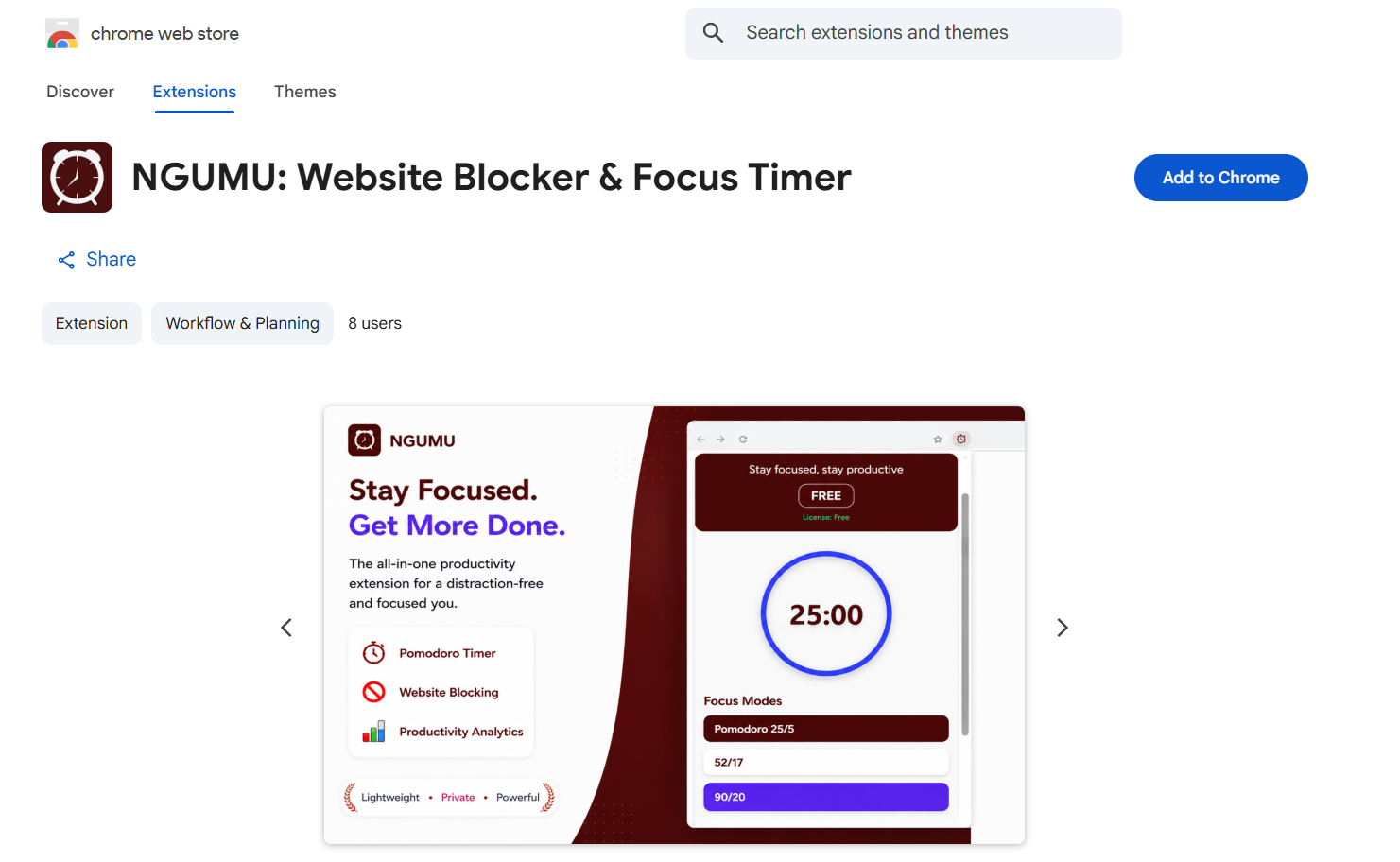
Confirm the browser prompt. First-time users get a 40-day free trial — see pricing for plans after that. Prefer a checklist? The install page has one.
Step 2 — Pin NGUMU and open the popup
Click the puzzle-piece icon in your toolbar, find NGUMU and pin it. Now one click on the alarm-clock icon opens the timer.
Step 3 — Pick a focus mode and press Start
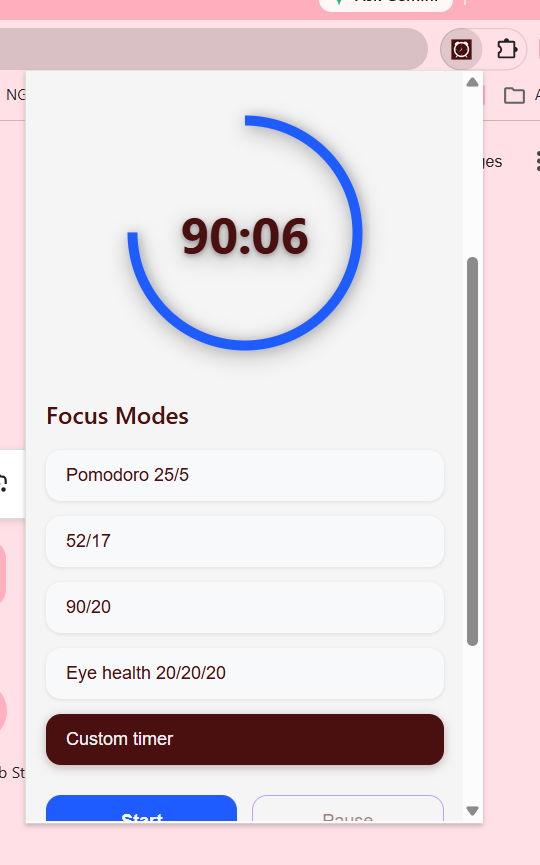
NGUMU ships with five modes:
| Mode | Best for |
|---|---|
| Pomodoro 25/5 | Getting started on tasks you avoid |
| 52/17 | Everyday knowledge work |
| 90/20 | Deep work: writing, coding, study |
| Eye health 20/20/20 | Long screen days and eye strain |
| Custom timer | A rhythm that fits your schedule |
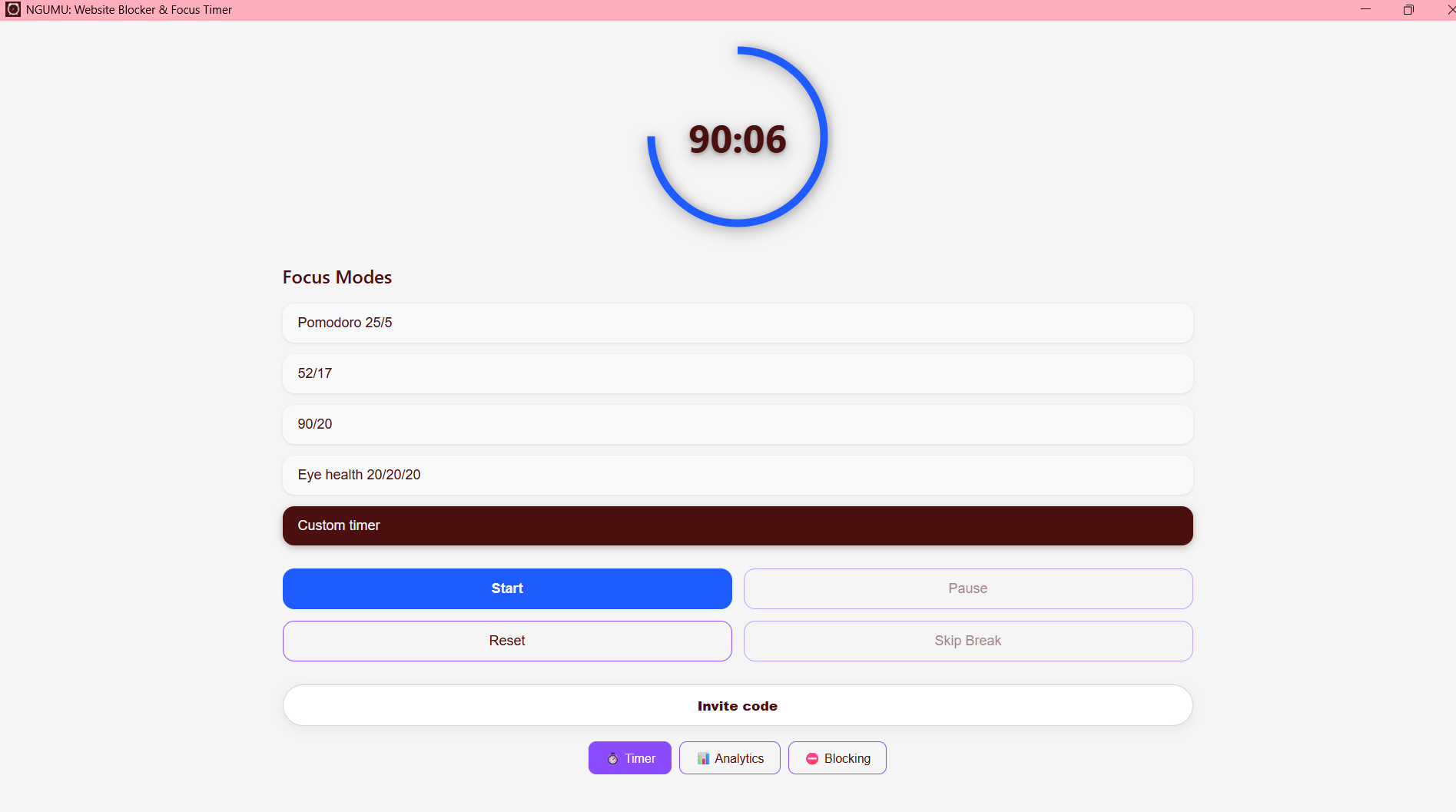
Choose one and press Start. Use Pause, Reset or Skip Break whenever you need.
Step 4 — Block distracting websites
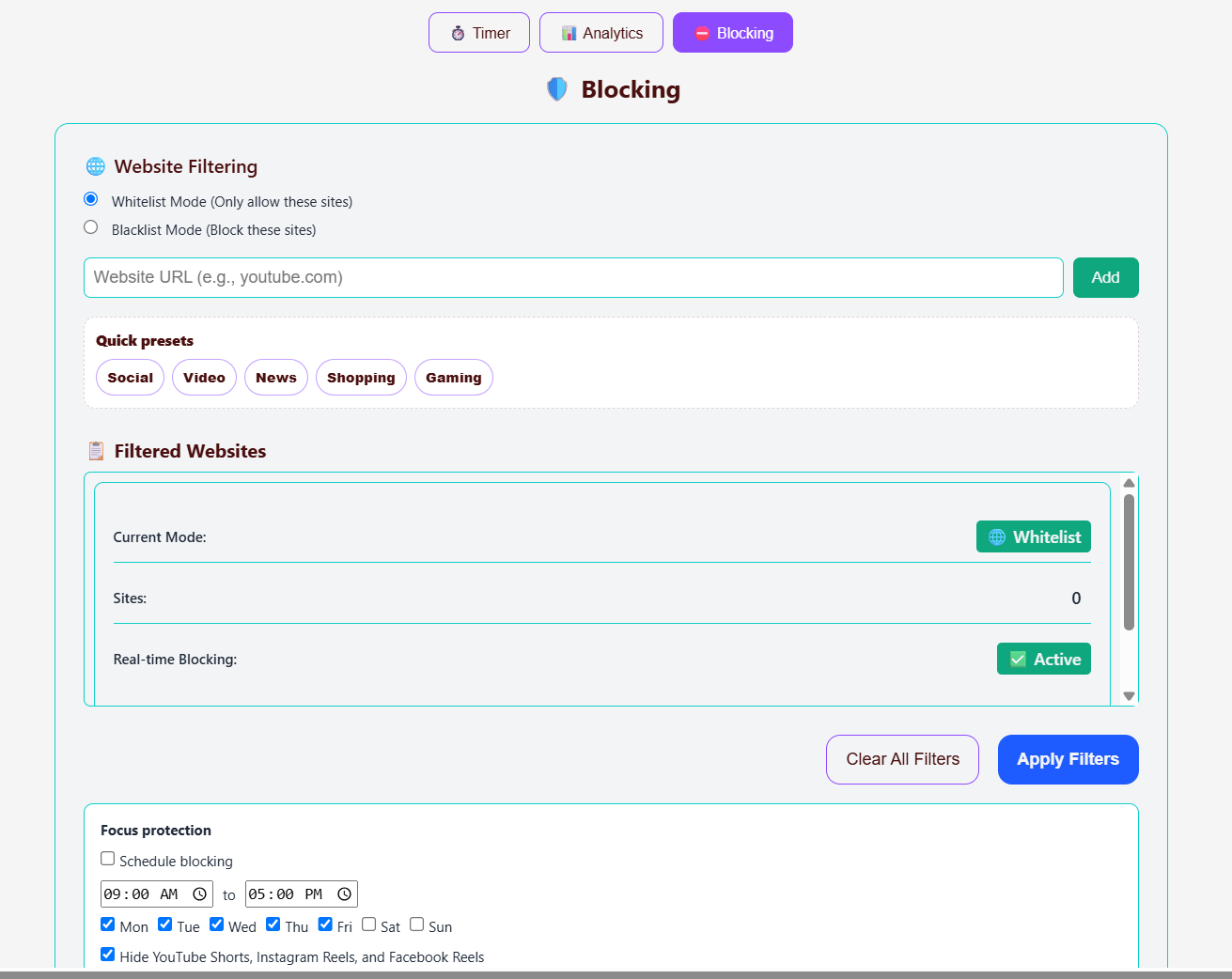
Open the Blocking tab and choose a mode:
- Blacklist mode blocks only the sites you list.
- Whitelist mode allows only the sites you list — ideal for exam prep or deep work.
Type a site (e.g. youtube.com) and press Add, or tap a quick preset: Social, Video, News, Shopping, Gaming. Press Apply Filters to turn on real-time blocking.
Step 5 — Turn on focus protection
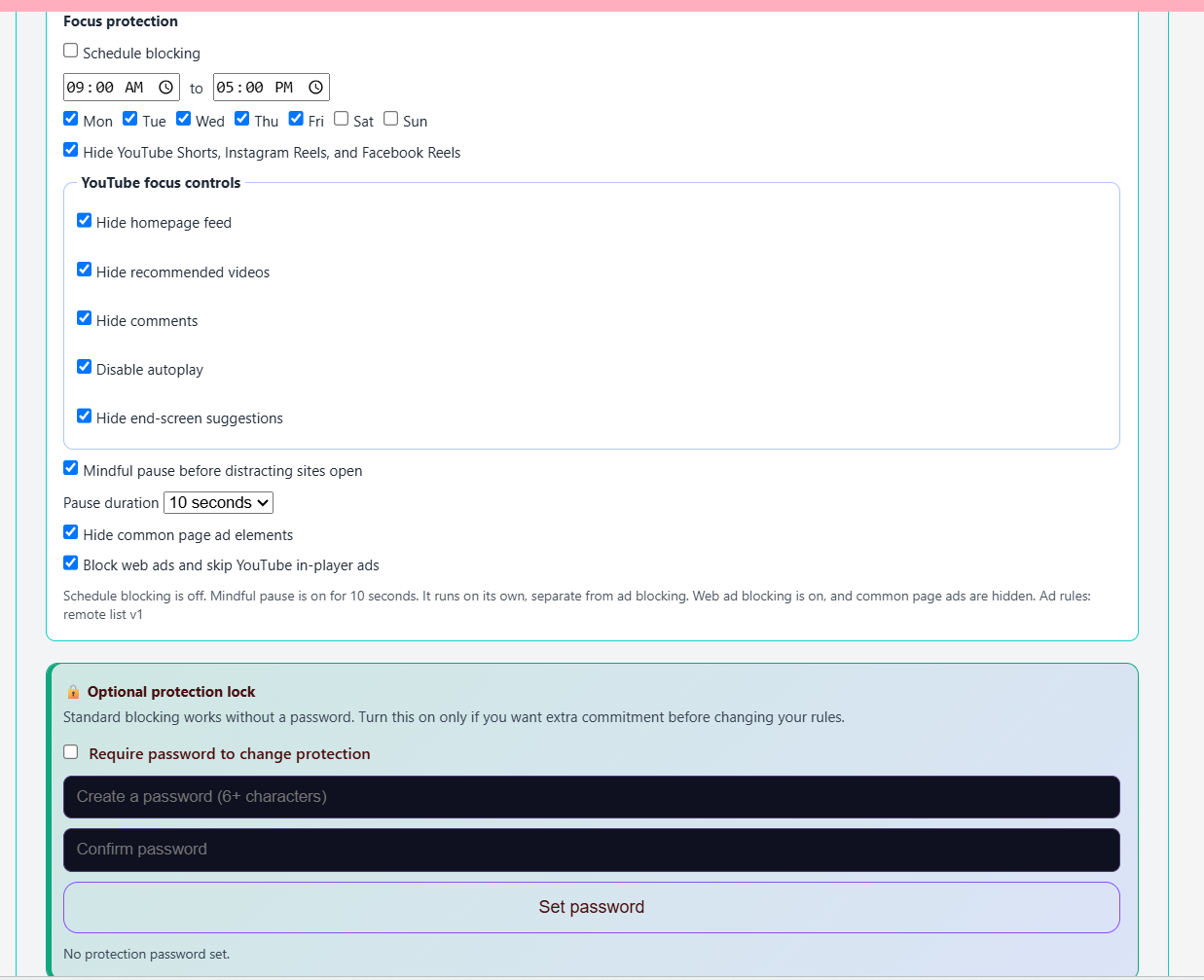
Scroll down for extra controls:
- Schedule blocking for set hours and days (e.g. 09:00–17:00, Mon–Fri).
- Hide YouTube Shorts, Instagram Reels and Facebook Reels.
- YouTube focus controls: hide the homepage feed, recommendations, comments and end-screen suggestions, and disable autoplay.
- Mindful pause — a short wait (e.g. 10 seconds) before a distracting site opens.
- Optional protection lock — set a password so you can't quietly undo your rules.
Step 6 — What happens when you visit a blocked site
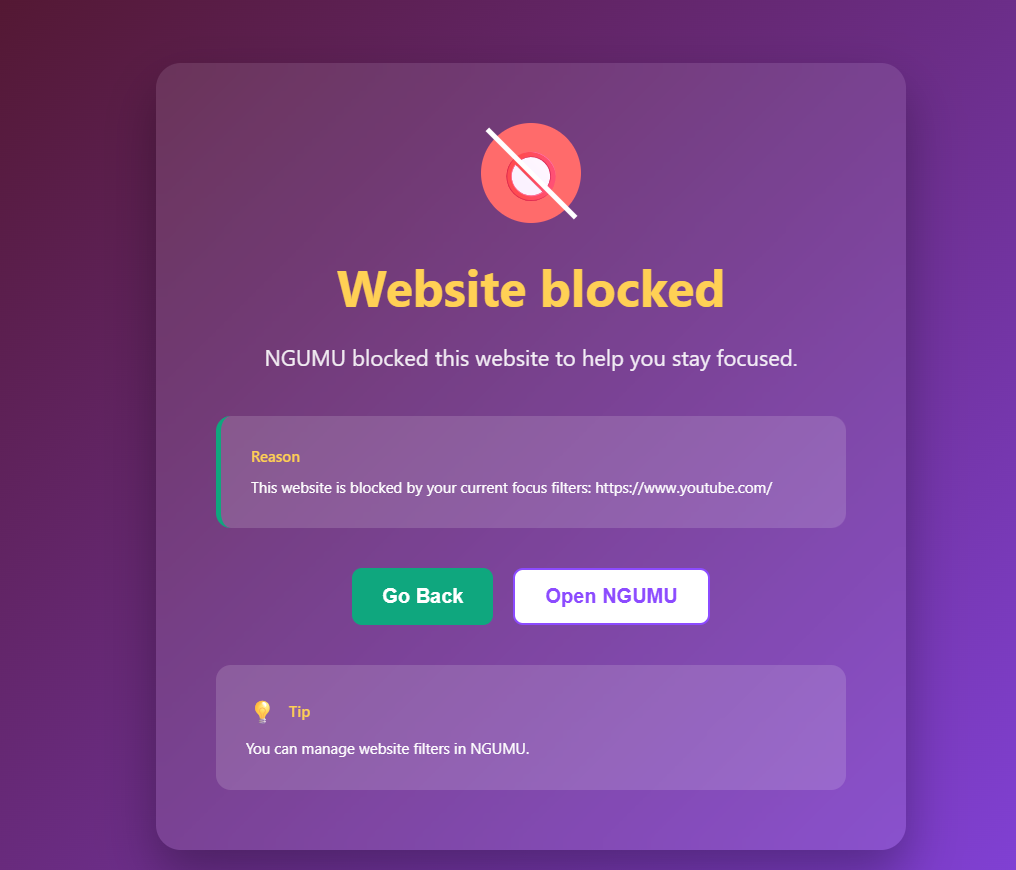
Instead of the site, you'll see a calm "Website blocked" screen that explains why. Click Go Back to return to work, or Open NGUMU to change your filters.
Step 7 — Take your breaks
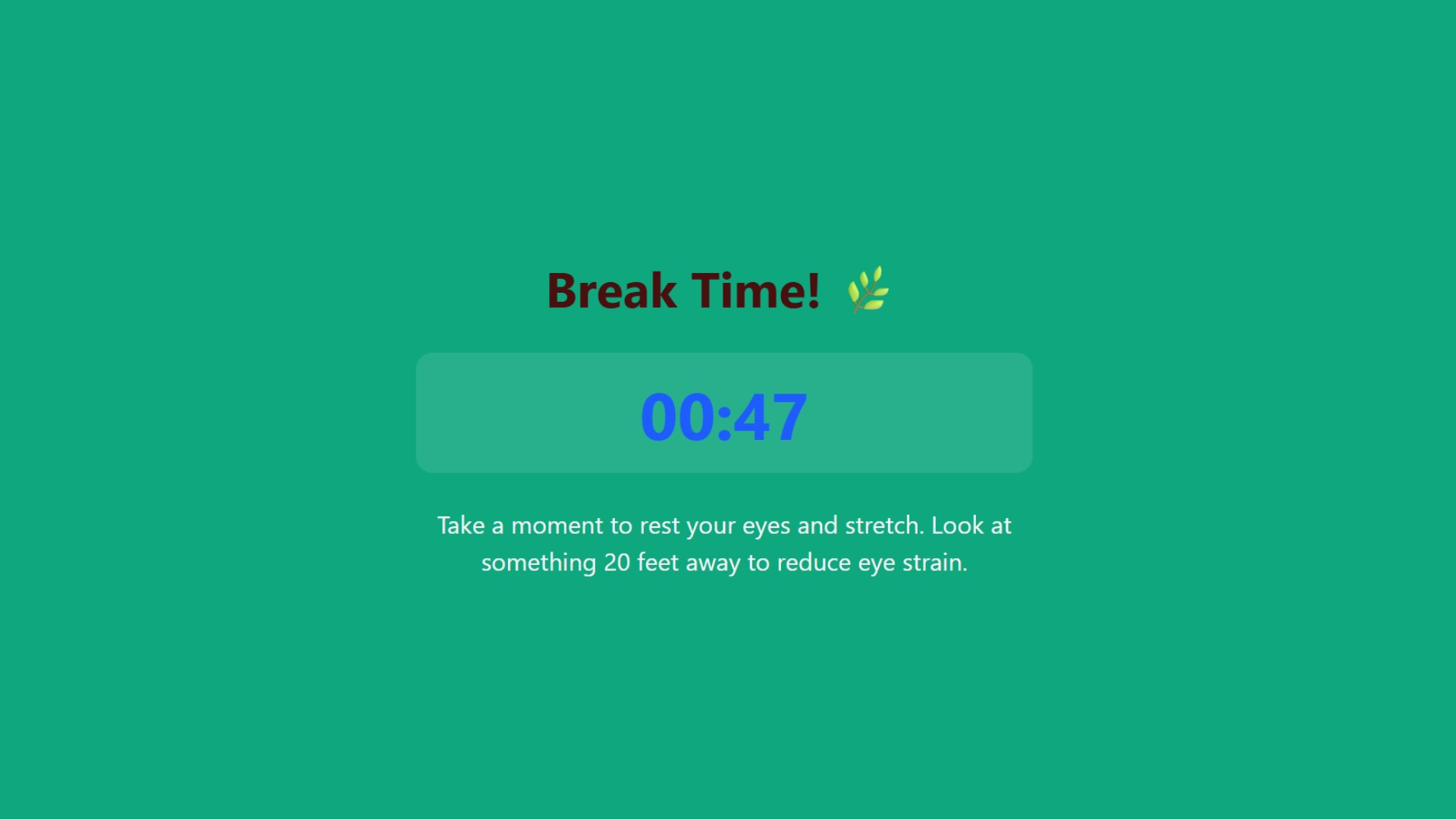
When a focus interval ends, NGUMU shows a full-screen Break Time overlay with a countdown. Look at something 20 feet away, stretch, and come back fresh.
Step 8 — Review your progress in Analytics
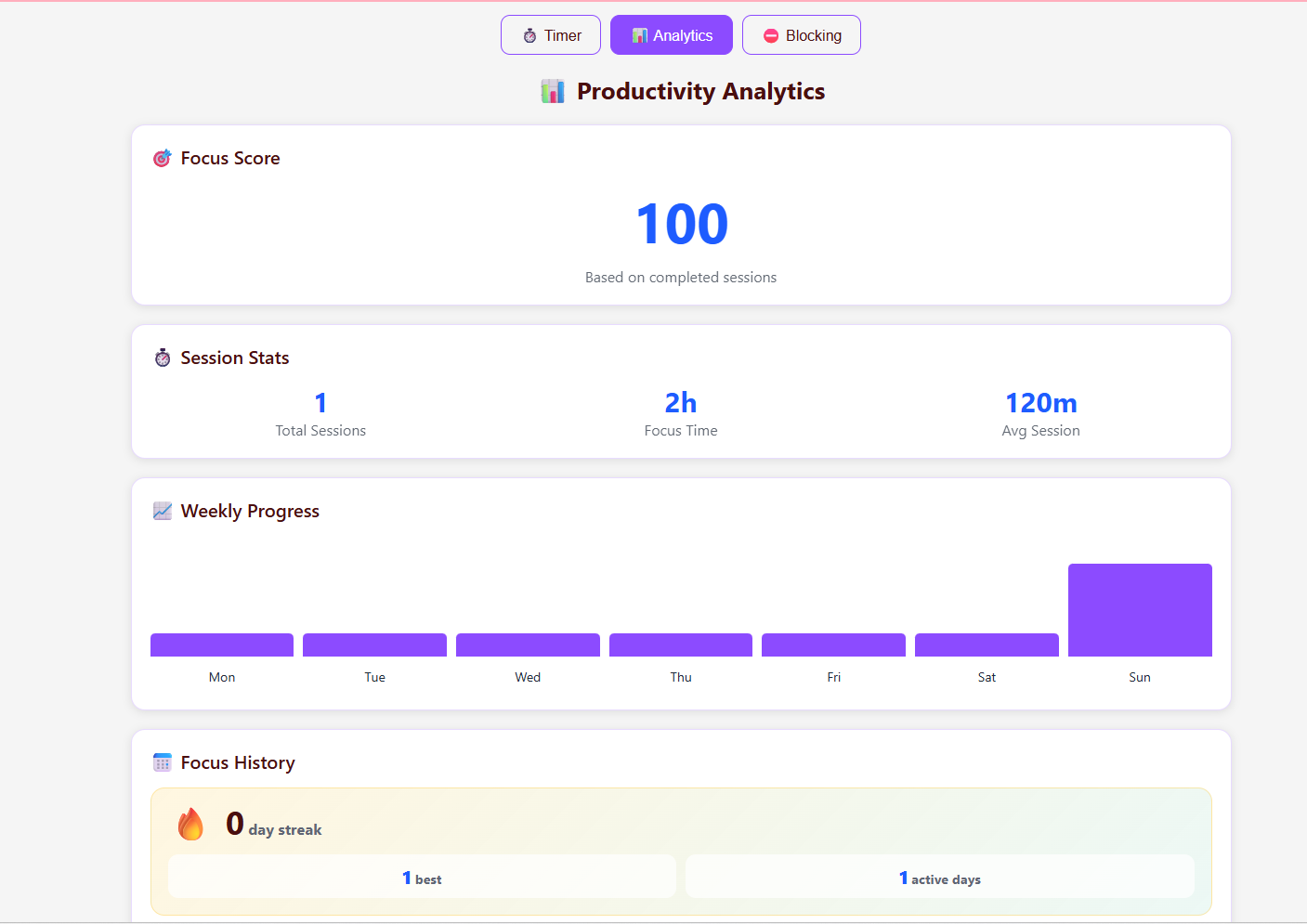
The Analytics tab shows your Focus Score, total sessions, focus time, average session length, a weekly progress chart and your day streak. Check it once a week and adjust one setting at a time.
Quick start checklist
- Install from Chrome, Edge or Firefox.
- Pin NGUMU to the toolbar.
- Pick a focus mode and press Start.
- Add a blocking preset and press Apply Filters.
- Hide Shorts/Reels and turn on a mindful pause.
- Take every break.
- Review Analytics weekly.
For deeper strategy, read the complete NGUMU guide and how to reduce screen time without losing productivity.
Frequently asked questions
Which browsers does NGUMU work on?
Google Chrome, Brave (via the Chrome Web Store), Microsoft Edge and Mozilla Firefox.
What is the difference between whitelist and blacklist mode?
Blacklist blocks only the sites you add. Whitelist blocks everything except the sites you add.
Can I stop myself from turning blocking off?
Yes. Turn on the optional protection lock and set a password before you can change your rules.
Is NGUMU free?
There is no free plan. First-time users get a 40-day free trial; after that a paid plan is required. See pricing.